Live Events: Share a Live Results Link and Time With Your Colleagues
Every carnival, someone asks the same question at the finish line: "How did my kid go?"
As of version 4.21, they can just watch. And the thing teachers have asked for more than anything else — timing the same event from several phones — is in the same update.
This post walks through both, step by step, with what's actually happening underneath so you can trust it on race day.
Part 1: Go Live — a link families can watch
How you set it up
- Create your event as normal and add your runners.
- On the event setup screen, tap Go Live. The first time, you'll sign in with Apple — hosting needs an account so only you control the event. (Nobody else ever needs to sign in.)
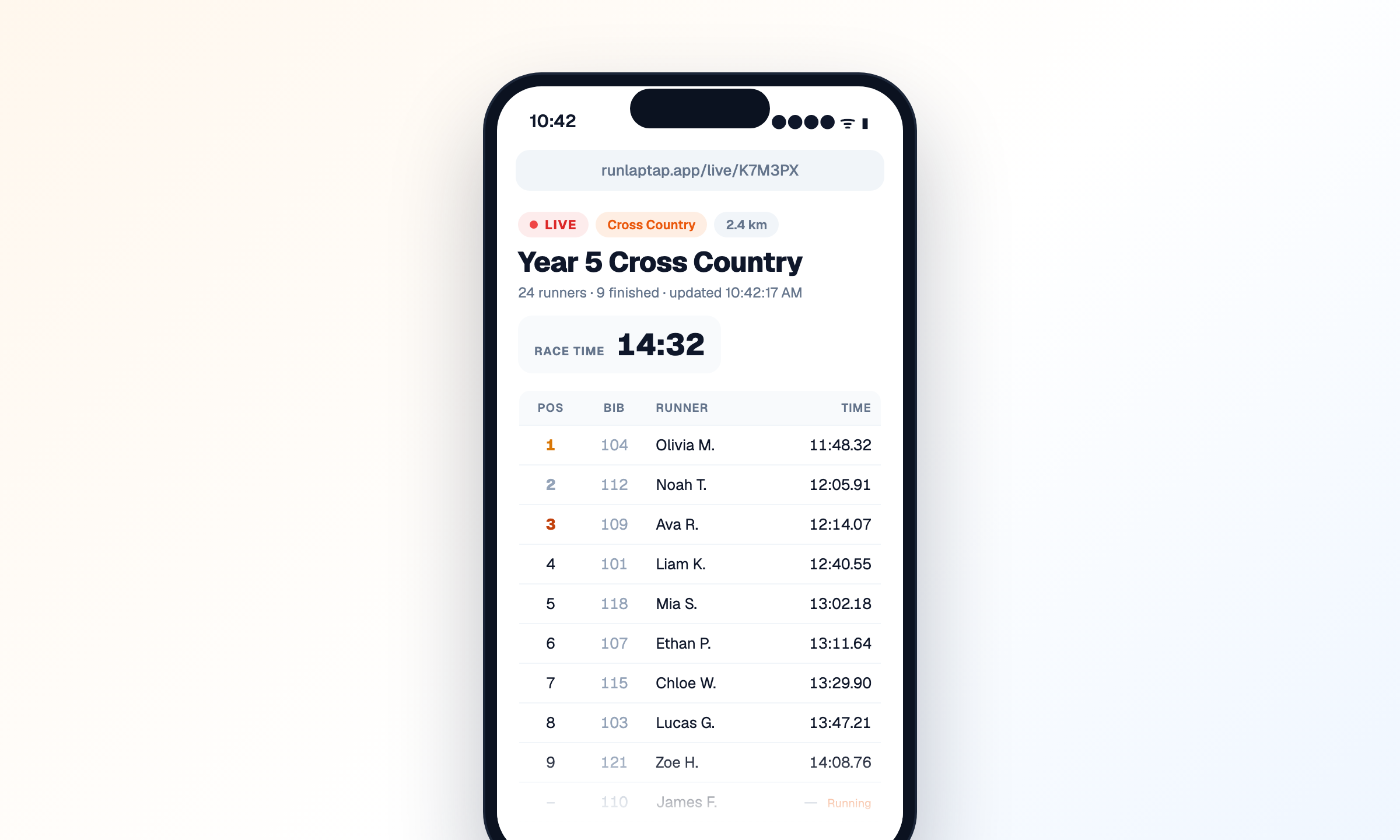
- You get three things instantly: a 6-character invite code, a QR code, and a live results link like
runlaptap.app/live/K7M3PX. Tap Share Link to send it to your parent group, the school newsletter, or a WhatsApp chat. - Press Start and time the event exactly as you always have.
What families see
They open the link in any browser — no app, no account, nothing to install. The page shows a live badge, a race clock that ticks, and the leaderboard: positions, bib numbers, first name and last initial, and times to the hundredth. Every time you record a runner, their row updates within a second or two. Runners still out on the course show as Running.
When you finish the event, the page flips to Final results and shows a permanent results link that stays up after the live page is gone.
What you should know
- Runners are shared by first name and last initial only — no full names, no ages, nothing else leaves your device.
- Timing never waits for the network. Every tap is recorded on your phone first; the live page catches up whenever you have signal. If the oval has no reception, the page fills in the moment you walk back to the car park.
- Invite codes expire after 24 hours.
Part 2: Time together — several phones, one result
This is the one I'm most pleased with, because the old answer was a workaround: split your runners into separate events, one device each, and merge the spreadsheets afterwards. That guide is still on this blog — and it's now obsolete.
How a colleague joins
- They open Run Lap Tap, go to the Events tab, and tap Join Live Event (the icon next to +).
- They enter your 6-character code.
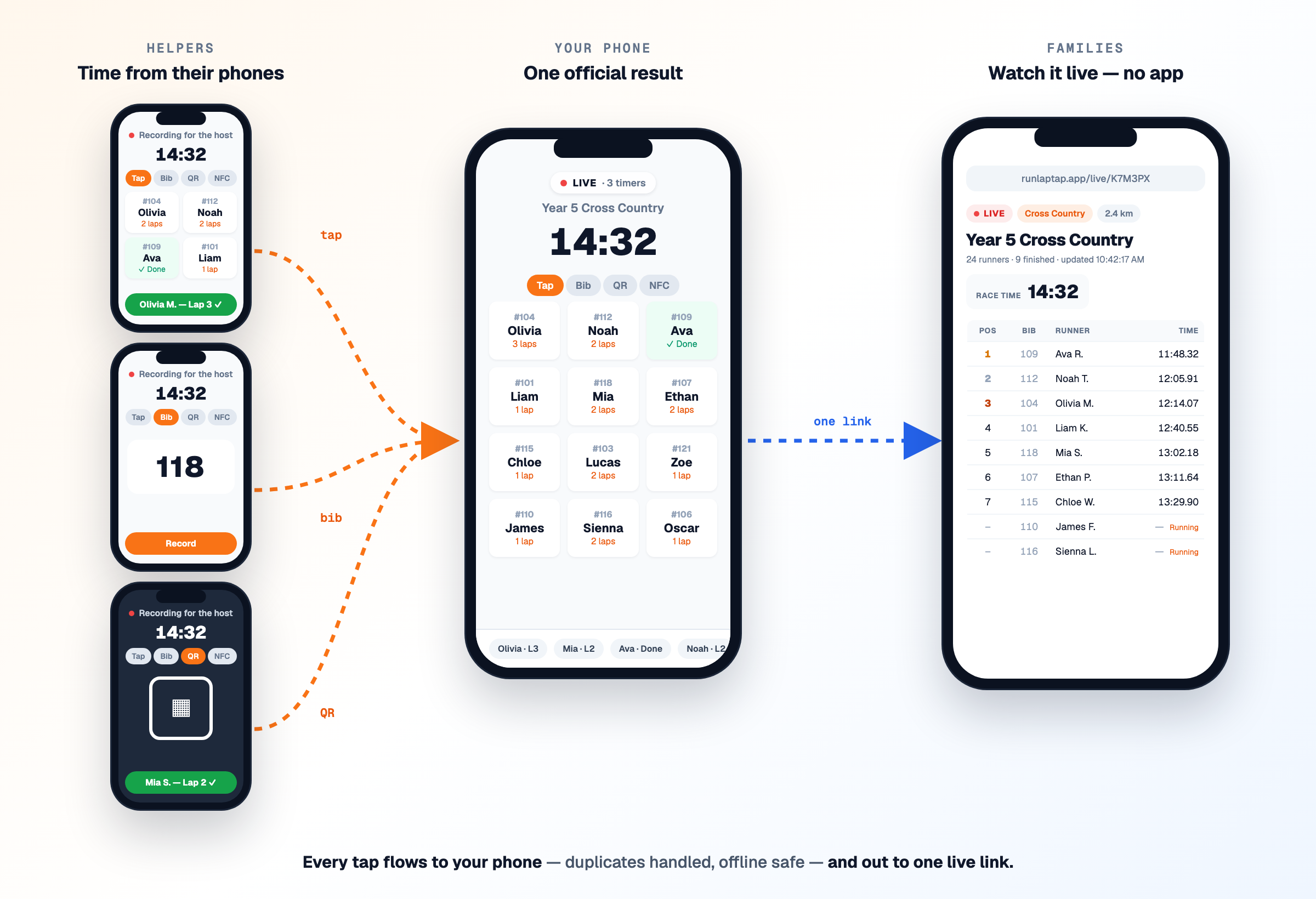
- They get a Record tab with the same four methods you have — tap, bib entry, QR scan, NFC — driven by your runner list. They don't need your roster, your labels, or anything set up in advance. Your printed QR labels and paired NFC wristbands scan on their phone straight away, because the runners' codes travel with the event.
- Their screen says "Waiting for the host to start" until you press Start. Then they record.
They also get a Leaderboard tab, which is handy for a helper stationed away from the finish who wants to see how it's going.
What happens to their taps
Every tap a helper records flows to your phone, which owns the official results. It becomes a normal lap record on your device — so exports, the live page, achievements, everything already works with it. Your Live badge shows how many timers are connected.
Three details make this safe at a real finish line:
- Duplicates are handled. If two people catch the same runner within about five seconds, the second tap is dropped automatically. No arguing with a spreadsheet afterwards.
- Clocks are synced to your start. A helper's phone that's a minute wrong still records the right split, because every tap is measured against the moment you pressed Start.
- Offline works for them too. A helper with no signal keeps recording; their taps arrive when they reconnect, and land in the right order.
Helpers can undo their own recent taps from the strip at the bottom of their Record tab.
Ways to use it
- One finish line, several timers. Two or three people catching a big field at the chute — the classic carnival problem, solved.
- Checkpoints. A helper at the halfway mark on a cross country course recording splits, while you take the finish.
- Parents as timers. The join code is free to use, so a trusted parent with an iPhone can help at a lap event.
- A second iPad in the marquee showing the leaderboard tab for announcers.
Who can host
Going live is included with Run Lap Tap Pro, or you can unlock a single event with a Race Pass — a pass unlocks the whole event, unlimited runners and live sharing. Joining and watching are always free. Helpers and families never pay and never sign in.
Try it on a practice session first
It takes about a minute to understand once you've seen it: go live on a training run, open the link on your own phone, tap a couple of runners, and watch them appear. Then hand a colleague the code. By the time carnival day arrives it'll feel obvious.
Live events are in version 4.21, available now on the App Store. If you've got a cross country or athletics carnival coming up, this is the update that changes how the day feels.